Guides
How to Share Resources During an Instagram Live

Ask viewers to send a specific keyword to your Instagram inbox, then answer that incoming request with the promised resource. The same clear instruction can serve replay viewers without depending on an ended broadcast.
Published by ReplyMagnet · Last updated
You are halfway through a paper-folding demonstration when someone asks for the materials list. Another viewer asks which paper you are using. You can keep teaching while giving both people a clear way to request the same prepared sheet.
This guide uses a fictional beginner paper-folding session and the instruction “Send MATERIALS to my Instagram inbox.” ReplyMagnet responds to that new direct message. A spoken request, a Live comment and simply watching the broadcast are not the trigger in this workflow. The screenshots show real controls in an unsaved demonstration; no viewer messages or delivery results are presented.
What is the simplest resource-sharing route during a Live?
Tell viewers which account to message, which word to send and what they will receive. Configure an inbound DM keyword campaign to answer that request.
Use a complete invitation: “If you want the materials sheet, send MATERIALS to my Instagram inbox at the account hosting this session.” Say the account name when there could be ambiguity, especially with a guest or cohost. A short instruction works better than asking viewers to remember several links while watching.
The route is straightforward: a viewer hears the invitation, opens the named account’s inbox, sends the keyword and receives the configured response.
For this example, avoid saying “comment MATERIALS below.” That wording would describe a different entry route. Even if your software supports several surfaces, keep one instruction consistent across the spoken explanation, on-screen notes and replay caption. A clear invitation is easier to test and easier for the viewer to follow.
Create a session companion that helps people act
Prepare one focused resource that supports the demonstration. Include the decisions a viewer needs to make after watching, rather than a transcript of everything you say.
Our fictional materials sheet has four parts: the minimum supplies, acceptable substitutions, preparation steps and a small first exercise. The point is to help someone begin with what they have. Brand names alone are less useful than explaining the properties that matter, such as the paper’s flexibility and thickness.
Describe quantities and alternatives in ordinary language. If an item is optional, mark it optional. If a substitution changes the exercise, explain that change. Do not call a complete shopping list “everything you need” when the demonstration also depends on tools omitted from the sheet.
Keep the first task small enough to attempt after the session: prepare the workspace, make a basic fold, unfold it and identify the crease. The resource first-use guide covers designing the next action in more detail.
Give the sheet a title and version date that match the invitation. “Beginner paper-folding materials and first practice” tells the viewer more than “Download v6.” Open it on a phone, check the text size and make sure it works without account access you did not mention.
Write the delivery contract before opening the campaign
Record the account, inbox keyword, resource and reply as one small specification. That makes the setup and the spoken invitation testable.
A delivery contract is simply an agreed description of what should happen. It is useful when the person presenting is not the person configuring the campaign. The presenter should not discover during the session that the keyword changed or the link now opens a different resource.
For the paper-folding example, the contract below is deliberately narrow. It does not include event registration, a purchase or a newsletter subscription. If you add any of those later, explain the new next step rather than quietly changing the exchange.
Copyable specification for the fictional paper-folding session
Decision
Receiving account
- Example
- The account named by the host
- Check
- Verify the exact profile and connected account
Decision
Viewer action
- Example
- Send MATERIALS by direct message
- Check
- Invitation says inbox, not Live comments
Decision
Requested resource
- Example
- Beginner paper-folding materials and first practice
- Check
- Title matches the sheet
Decision
Reply
- Example
- Here is the materials sheet for today’s paper-folding session
- Check
- Destination is the current resource
Decision
Fallback
- Example
- A known profile link to the same sheet
- Check
- Open it as a visitor
Decision
Owner
- Example
- Named campaign operator
- Check
- Can correct or pause the setup
Keep this record beside the session notes. If the destination changes, update both the campaign and the fallback.
Set Direct messages as the source and MATERIALS as the keyword
Choose the inbox as the campaign source, then configure MATERIALS with matching behavior that agrees with the invitation. Review the connected account before continuing.
In ReplyMagnet, start the campaign setup for the intended Instagram account. Under Source, choose Direct messages.
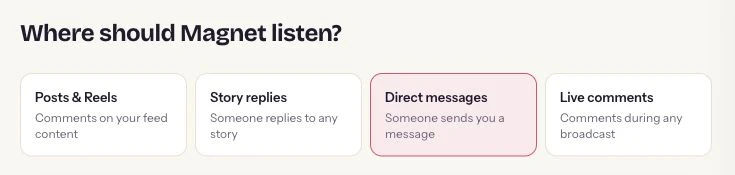
Real source selector: choose Direct messages for the inbox request used here.
Continue to the trigger controls, enter MATERIALS and add it as a keyword. This is the important surface distinction: the incoming DM starts this example, even though a Live session is where the viewer heard about it.
The demonstrated trigger uses Message contains the word. That allows the configured word to appear within a longer request such as “Please send the materials.” Exact word only is an alternative when you want the whole message to match the keyword. Choose deliberately and check the examples you expect your audience to type.
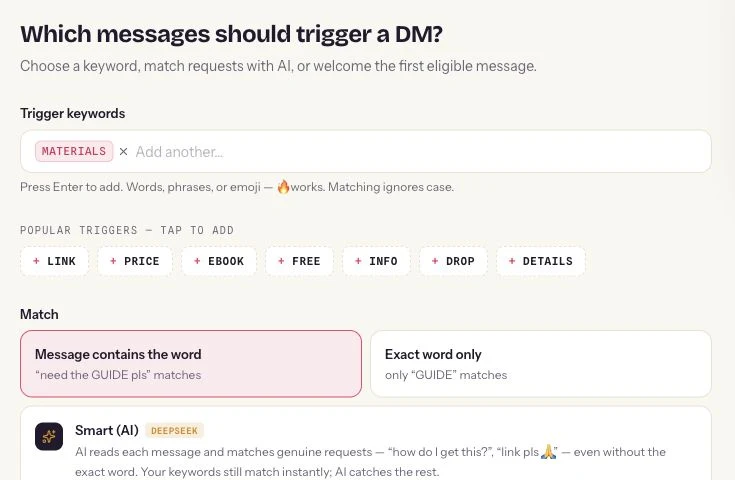
Actual trigger controls in an unsaved demonstration. This setup responds to an incoming direct message; the screenshot does not demonstrate a Live-comment trigger.
Look for other campaigns on the same account using MATERIALS or a similar request. If last month’s craft session still sends a different sheet, resolve that conflict before promoting the new one. A more specific word or clearly retired older campaign may be appropriate. Use the overlap audit as a planning checklist, while checking the behavior of your actual DM setup.
Write a reply that gets the viewer to the sheet
Name the promised resource, explain the immediate next step and attach the correct destination. Keep the first response focused on fulfilling the request.
Use concise copy such as: “Here are the materials and first exercise from the paper-folding Live. Start with page 1: you can use ordinary paper. Save the sheet and try one fold after the session.” The exact text should describe the file or page you actually prepared. Avoid changing the conversation into a consultation or sales pitch before delivering the requested sheet.
For a hosted document, upload the finished PDF and attach it through the resource controls. ReplyMagnet supports PDFs up to 25 MB on Starter. If you want to deliver your own external page as a link asset, use Basic or higher. The asset documentation explains the options; choose the format that suits the resource.
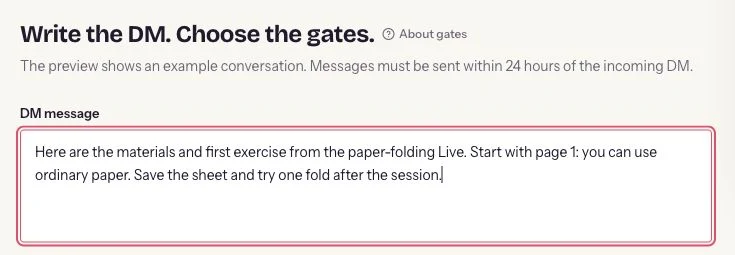
Actual DM-copy editor in an unsaved demonstration. The crop shows the message field, not an attached materials sheet or a sent message.
Decide whether you need a capture form. For a simple public materials list, direct access may fulfill the whole promise. If you ask for an email address, explain that requirement before the person requests the resource and make the intended follow-up clear. Do not describe a download as immediate access if an undisclosed form stands between the reader and the sheet.
Rehearse the handoff before going live
Test the instruction and the destination as separate parts of the journey. An editor preview is useful, but a controlled end-to-end check is needed before relying on a live campaign.
Read the invitation aloud once. Can someone repeat the account, action and word without asking you to explain?
Inspect the draft controls and any available preview to confirm the resource and wording. When you deliberately launch your own campaign, make a controlled request from another account you own or an authorized tester. Follow that request through the inbox response to the actual resource. The screenshots in this article stop at configuration and do not stand in for that check.
Test the link on a phone without your creator login. Confirm that the file opens, substitutions are readable and any form works as described. If the link requires a sign-in, either remove that unnecessary barrier or explain the requirement honestly.
Record the outcome with the account, keyword, resource version and time. If a test fails, distinguish “no reply received” from “reply arrived but resource failed.” Those observations point to different fixes. Never ask a live audience to repeatedly submit requests while you are still guessing where the failure occurs.
Use a short broadcast run sheet
Assign the resource handoff to a named operator and repeat the same invitation at natural moments. Keep teaching as the main event.
Before the session, the operator confirms the campaign state, current sheet and fallback link. The host keeps the exact inbox instruction in the presentation notes.
At the opening, say what the sheet contains and how to request it. Repeat the invitation when the materials become relevant, then once near the close. This is a suggested run sheet, not an engagement formula. Avoid turning every explanation into another request for the keyword.
During the session, the operator watches for genuine confusion: viewers commenting the word in the Live, messaging the cohost or expecting a purchase confirmation. Respond with the correct route. A useful clarification is “For the sheet, send MATERIALS to this account’s inbox; the comments here are for session questions.”
If delivery is unavailable, use the prepared fallback: “The inbox resource reply is not working right now. The same materials sheet is available through the link on this profile.” Say this only when that destination is actually ready. A truthful alternative is more useful than promising a message later without a working process.
Keep the replay instruction valid after the session
Replay viewers can send a new inbox request using the same maintained keyword route. Update time-sensitive wording and keep the resource available for as long as you continue inviting requests.
The advantage of this particular setup is that it does not depend on the viewer having been present during the original broadcast. A replay viewer deliberately sends MATERIALS to the inbox now. That incoming message is the request your campaign evaluates. It is not recovery of an old Live comment. For requests sent as replies to a Story, see Story reply automation.
Review the replay title, caption and any pinned explanation. Replace “today’s session” where it creates confusion, name the materials sheet and preserve the correct receiving account. If the replay lives elsewhere, make it clear that the request belongs in the named Instagram inbox.
Keep campaign availability and resource availability aligned. When you retire the offer, update replay instructions and any profile links before leaving people to request an unavailable sheet. If you replace the worksheet with a new edition, explain whether it still matches the demonstration viewers are watching.
For a cohosted session, agree which account owns the reply and which person maintains it afterward.
Count resource requests separately from the audience
Use distinct records for viewers, incoming requests, delivered replies and resource opens. These events describe different parts of the session experience.
A viewer count measures an audience event. A MATERIALS message measures a specific request. A sent reply indicates delivery activity, while a resource open indicates that someone reached the destination. Avoid treating these numbers as interchangeable, especially when replay requests arrive days later.
Choose a reporting period and note whether it includes live-session and replay requests. If you cannot distinguish the two reliably, report combined requests rather than inventing a split. Review recurring questions alongside those counts: several people asking about substitutions may show that the worksheet needs a clearer section.
Common questions
Will typing MATERIALS in the Live comments start this example?
No. This guide configures Direct messages as the source. Viewers must send MATERIALS to the named account’s inbox. A Live-comment setup would be a separate workflow.
Can the campaign message everyone who watches?
That is not the workflow shown here. Each person initiates a supported inbox request. Watching, liking or following is not the configured request.
Do I need the advanced chat flow builder?
No. One resource reply can fulfill the materials request. Add conversation choices only if they help the reader choose between genuinely different resources.
What if someone asks an individual question instead?
Have a person address questions requiring context, such as whether a particular substitute suits their situation. A standard materials sheet is a reference, not a personalized assessment.
Can I use the same keyword for every Live session?
Only when it continues to mean one clear current offer. If sessions need different resources, use distinct understandable requests or retire the older route and update its invitations.
Keep reading
- Deliver an Instagram lead magnet without losing the reader
- Instagram welcome messages: setup and test guide (2026)
- After the lead magnet download: Instagram follow-up
- ReplyMagnet assets: upload a PDF or add a link