Guides
Your first Instagram auto reply, from caption to test comment
Have one post and one resource ready. You can add complexity later, once you have watched a real test request reach the right destination.
Published by ReplyMagnet · Last updated
Put these four things beside the campaign editor
Prepare the post, keyword, resource and reply text before creating the campaign, on a Business or Creator account. Having all four in view makes a mismatch easy to spot before launch.
Four things get a first auto reply running. Check them off before you open the editor:
- A Business or Creator account. A personal profile cannot read comments or message through the API; switching type takes about two minutes.
- The resource: a PDF up to 25 MB on the Assets page, or your own link as a link asset on the $9 plan and up.
- The post to arm: one post, a few, or the whole account.
- The two messages: a short public reply and the DM text that carries the link.
For a worked example, imagine a home-organising reel offering a cupboard checklist, with CUPBOARD as the keyword.
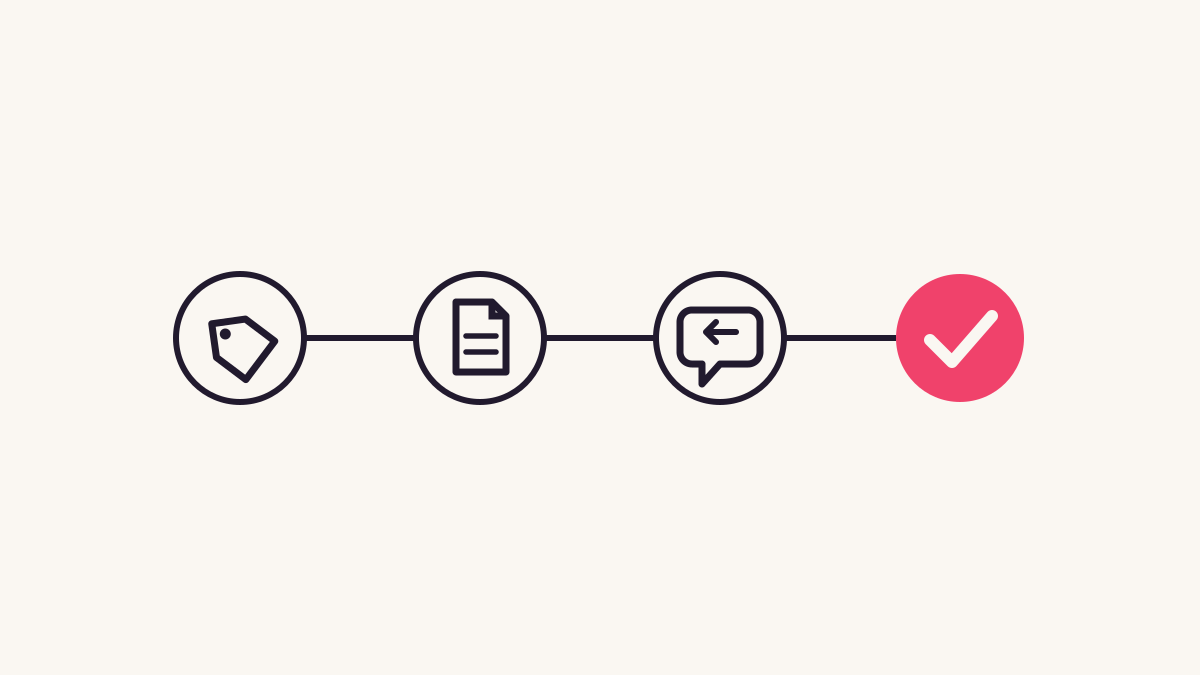
The free plan includes one live campaign and 1,000 engagements a month, with a 30-day trial and no card. Open a free account when those materials are ready.
What an Instagram auto reply does, step by step
An Instagram auto reply watches comments on chosen posts, posts a public reply under a match and sends the commenter a DM with a tracked link. Each step is logged as its own event, so a lead appears in the dashboard once the DM goes out.
This is comment-to-DM automation in its plainest form:
- A comment lands on an armed post. Instagram sends ReplyMagnet a webhook within seconds; nothing is polled or scraped.
- The comment is matched against the campaign's trigger keyword, or the AI check on a keyword miss.
- On a match, a public reply posts under the comment so the thread reads as answered.
- A DM follows, carrying your text and a tracked download link served from ReplyMagnet's own domain.
- If a gate is on, the link opens a capture page first; otherwise it opens the file.
- Every step logs as its own event: matched, replied, delivered, opened, captured.
The reply and DM go out as soon as the comment arrives, so a test comment from a second account confirms the wiring within a minute.
Instagram rules that shape the setup
Instagram only exposes comments and messages for Business or Creator accounts through an app that has passed Meta App Review. A comment can receive a private reply for seven days, a follow may be checked but never demanded, and the DM delivers a link rather than an attachment.
A few platform rules decide what the wizard can and cannot offer; none are ReplyMagnet choices, they come from Instagram's API and Meta's policies.
ReplyMagnet's Instagram app has passed Meta App Review for reading comments and sending messages, so you connect through Instagram's own permission screen and never hand over a password.
Rule
Business or Creator account only
- What it means for your campaign
- A personal profile cannot connect. Switch the account type in the Instagram app first.
Rule
Seven-day reply window on comments
- What it means for your campaign
- A private reply to a comment must be sent within seven days of the comment. A queued request older than that expires instead of sending.
Rule
24-hour messaging window on DM threads
- What it means for your campaign
- A story reply arrives as a message, not a comment, so its reply must go out within Instagram's 24-hour messaging window.
Rule
No reply to the account's own comments
- What it means for your campaign
- The pipeline ignores comments from the connected account, so you cannot test from the profile that owns the post.
Rule
A follow cannot be demanded for content
- What it means for your campaign
- Meta's spam policy prohibits requiring a follow to reach content. The follow check is optional, off by default, and a decision to weigh.
Rule
Messages carry links, not files
- What it means for your campaign
- Instagram's messaging endpoint sends text. The DM carries a tracked link to the file rather than an attachment.
Connect and select deliberately
Connect the professional account that owns the post, then select that post as the campaign's scope. Account-wide matching can also respond under other posts.
Review the account name on Instagram's permission screen; don't rely on whichever profile was last open in your browser. The free and $9 plans connect one account, the $29 plan allows 3, and the $79 plan allows 10.
Scope decides which comments the campaign can see:
- One post: the cleanest choice for a first test, since every reply traces to one caption.
- Several posts: useful when the same resource is promised across a series, as long as each caption names it.
- The whole account: for a resource offered everywhere. Broadening later is easy; starting broad makes a first test harder to interpret.
If the correct account or post is missing, use connection help rather than selecting a different profile.
Pick the trigger
A campaign fires on one of three match modes: an exact keyword like CUPBOARD, an AI check for a clear request with no keyword, or any-comment mode answering every comment. An exact keyword suits a first test.
There are three ways to decide which comments get a reply.
- Exact keyword is the usual choice: a short, easy-to-type word such as CUPBOARD, GUIDE or PRICE. The match respects word boundaries, so GUIDE fires on ‘need the guide’ but not on ‘guideline’.
- AI matching (smart trigger) runs only when a comment misses every keyword, catching a clear request such as ‘can I get this?’ under a post offering one thing. It is on every plan, capped at 100 to 2,000 checks a day, and fails closed on an uncertain read.
- Any comment (any-comment mode) answers every comment on the armed post, for a post that exists only to hand something out.
Start with the keyword alone, verify one exact request, then decide whether AI matching suits the offer. A second resource needs its own campaign.
Write the public reply and the DM
A campaign sends two messages: a public reply under the comment so the thread reads as answered, and a private DM carrying the link to the file. Keep the link in the DM, since that is the message that delivers.
The public reply posts under the commenter's comment, so anyone scrolling past sees the request was answered. Keep it short and human, and say by which channel the resource is arriving.
The DM is where delivery happens. Write a line or two; ReplyMagnet appends the tracked link automatically. Say plainly what the file is, then let the link carry it. For the cupboard example, the three pieces should agree:
- Caption: ‘Comment CUPBOARD for the one-page cupboard checklist.’
- Public reply: ‘Sent the cupboard checklist by DM.’
- DM: ‘Here’s the checklist from the reel. Open the link to download it.’
A reply that promises a checklist and a DM that sends a forty-page ebook loses the trust the reply earned. If the PDF is titled something else, rename it or explain the title in the DM.
Optional gates
Before releasing the file, a campaign can ask for a follow, an email or a phone number. The follow check is verified through Instagram's is_user_follow_business field and off by default, email capture is on every plan, and phone capture starts on the $9 plan.
Gates are optional and stack independently. Turn one on and the link in the DM opens a capture page in front of the file instead of the file itself.
Because a mandatory follow to reach content carries real policy risk, weigh the follow check before switching it on; a commenter who already follows skips straight to the file.
Every gate trades some downloads for the data it collects. An address you never email again isn't worth the requests it cost, so turn a gate on only when there is a real plan behind it, and explain the requirement in the offer. The gates reference covers each setting.
Gate
Follow check
- What it asks for
- That the commenter follows the account
- How it is checked
- Instagram's is_user_follow_business field, verified by the API
- Available on
- Every plan, off by default
Gate
Email gate
- What it asks for
- An email address on the capture page
- How it is checked
- Format check on submit; the lead is recorded before the file opens
- Available on
- Every plan
Gate
Phone gate
- What it asks for
- A mobile number, alone or with email
- How it is checked
- Separators stripped and the number validated on submit
- Available on
- $9 plan and above
Set up the campaign, step by step
Setup runs through six wizard steps: connect the account, pick the post and scope, set the keyword, attach the resource and write the two messages, choose gates, then launch and test from a second account. A first campaign takes a few minutes once materials are ready.
Everything happens in the campaign wizard, with nothing to code or wire yourself.
- Connect the Business or Creator account through Instagram's permission screen, granting comment and message access. Check the account name first.
- Start a campaign and pick the post, several posts or the whole account as its scope.
- Set the keyword and match mode. Add CUPBOARD, plus only wording you actually expect, and leave AI matching for later.
- Attach the final PDF or link, write the public reply and DM text, and confirm the file opens on a phone.
- Choose gates: none, or a follow check, email or phone field, with the requirement explained in the offer.
- Launch, then comment the keyword from a second account and follow the reply, DM and link through to the file.
A campaign goes live the instant you launch it, so the first real comment on a live post is a bad place to find a broken keyword. The campaign reference walks through each screen. If a live test fails, use the comment-to-DM troubleshooting guide to locate the missing step.
Run a positive test and a negative test
A successful test delivers the resource for a valid request and leaves an unrelated comment alone. Use a separate account, since the connected account's own comments are ignored.
Comment CUPBOARD and follow the journey through the DM to the file, then leave an unrelated comment such as ‘That shelf colour looks great,’ which shouldn't get a checklist merely for appearing on the post.
Tick off each of these before calling the test passed:
- The public reply appeared under the keyword comment within about a minute.
- The DM arrived with your text and a link on ReplyMagnet's domain, not a raw storage address.
- The link opened the file, or the capture page if a gate is on, and the file itself opened on a phone.
- If email capture is on, the test address shows in the lead record and reaches any connected sync destination.
- The unrelated comment received no reply and no DM.
Use campaign activity to distinguish an unmatched comment from a failed delivery.
Publish only after the file works
Invite real requests only after the complete delivery has passed testing. Repeat the test whenever the asset, capture setting or destination changes.
Keep the campaign's resource name close to the caption wording. If you replace the cupboard checklist with a new edition, update any version-specific promises in the post or message.
If another tool answers comments on that post, disable the overlapping automation before launch, so one request doesn't produce two competing replies.
Then let it run against real traffic. If a post takes off, comments beyond your plan's monthly quota do not drop: the overflow queue parks them and releases them oldest-first as headroom opens, on every plan, with nothing billed extra. The only request skipped is one whose seven-day reply window has closed by the time headroom returns.
For the mechanics behind the controls, read the comment-to-DM overview.
Common questions
Why doesn't my own comment trigger the reply?
Comments from the connected account are ignored by design. Use another Instagram account to test the campaign.
Should I enable AI matching immediately?
First verify an exact keyword request. Then test natural-language requests and unrelated comments so you can judge whether intent matching suits the offer.
What happens if I get more comments than my plan allows?
Comments beyond your monthly quota park in the overflow queue instead of dropping, on every plan, releasing oldest-first as headroom opens on a new cycle or an upgrade. Nothing is billed extra, and a send is only skipped once its reply window has closed.
Can I edit the reply later?
Yes, a live campaign's keyword, reply text, DM copy and gates can all be edited after launch. Changes apply to comments that arrive after you save, so repeat the test comment afterward.