Product guide
Use custom fields and tags to guide your Instagram DM flow

Save the detail someone shares, record the help they choose and send a relevant next message. Build one coach’s flow using Ask a question, Update contact and Check a condition.
Published by ReplyMagnet · Last updated
What do custom fields, tags and conditions do?
A custom field stores an answer, a tag records a label and a condition chooses a path using that information. Together they help a configured Instagram conversation respond to the visitor’s stated preference.
A visitor can say what they need once, then follow a path that reflects their choice. You might save the goal they describe, label whether they prefer self-guided help or a consultation, and send the relevant next message.
These three building blocks have different jobs. Keeping those jobs clear makes the flow easier to edit: the question collects information, the action records a deliberate label and the condition reads the resulting state.
This tutorial builds one fictional coach’s conversation. The examples and screenshots demonstrate configuration and logic; they are not a customer case study or a claim about bookings.
Three building blocks used in the worked coach example
Building block
Custom field
- Job
- Store a typed answer
- Example
- goal contains the visitor’s planning goal
Building block
Tag
- Job
- Record a configured label
- Example
- consultation identifies the selected consultation path
Building block
Condition
- Job
- Choose Yes or No using a rule
- Example
- Has tag consultation sends Yes to the booking message
Plan one conversation with a useful decision
Ask the visitor to choose Self-guided or Consultation, record that preference, collect their planning goal and use the consultation tag to select the next message.
The coach’s invitation is “DM PLAN and choose a planning resource or a consultation.” The first Offer choices message can read: “How would you like to plan your next step? Reply 1 for Self-guided or 2 for Consultation.”
Both visitors then answer the same question: “What would you like help planning?” The shared question saves its answer to a text field called goal. A Check a condition step reads whether the consultation tag is present. Yes leads to the booking message; No leads to the self-guided resource.
Use these exact names in the demonstration so the paths are easy to trace. The reply labels are customer-facing wording, while self_guided, consultation and goal are configuration keys.
Before collecting an answer, know its purpose. Here, the goal provides context for the coach’s later review; the selected tag controls the immediate route. The flow does not need to interpret the meaning of the free-text goal to send the correct next step.
Prepare the campaign and its destinations
Use an eligible Instagram Pro or Agency workspace, including a valid trial, and owner access to edit and publish. Start with a Direct messages campaign using PLAN as its keyword.
Have a suitable resource and current consultation booking page ready. Check both destinations separately so the conversation points to something useful. A planning PDF should help someone begin the self-guided task; the booking page should explain the appointment and how to choose a time.
The Canvas builder walkthrough covers opening the builder, reading the map and configuring message links. This article builds on that foundation rather than repeating the entire first-flow setup.
Open Build a chat flow from your eligible campaign. Add Offer choices, enter the Self-guided and Consultation labels and keep its numbered instructions synchronized with their order. Use Canvas to inspect how the branches connect, and Outline when a list is easier to review.
The screenshots in this guide are authentic production UI from an unsaved demonstration captured on 12 October 2026. Preview runs use synthetic answers; no Instagram messages are sent to make these images. Substitute your own resource and real booking destination when preparing a live campaign.
Create the goal answer field
Insert Ask a question, choose Create a new answer field, enter Goal as the Answer name and select Text as the Answer type. Add the step and confirm that Save answer to uses goal.
Use a highlighted + connection to add Ask a question where the shared question will begin. The dialog asks where the answer should be saved. Under Save answer to, choose Create a new answer field.
Enter Goal in Answer name and select Text in Answer type. Choose Add step, then review the generated key in Save answer to. For this example the key is goal. If that key already exists, select the intended existing field instead of creating a second field with the same purpose.
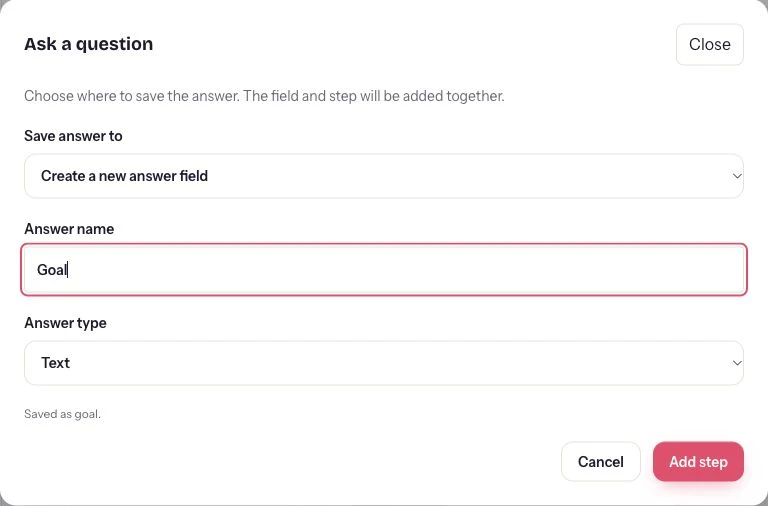
Actual production field setup, 12 October 2026. The demonstration creates or selects a text field for the planning goal; it does not collect a real visitor’s answer.
In Step properties, set Message text to “What would you like help planning?” and confirm Save answer to. Choose a useful Retry prompt, review Retries and set a deliberate No-answer timeout (seconds).
The question has a valid-answer path, an Invalid after retries path and a No answer path. Continue the valid answer to the routing condition, and give the other outcomes deliberate endings. This keeps a previous saved goal from becoming an assumed new answer when someone does not complete the current question.
Record the chosen interest with Update contact
Add Update contact on each choice branch. Use Action → Add tag and enter the Tag key directly: self_guided on the Self-guided branch, consultation on the Consultation branch.
Tags are entered as keys in a text input. They are not selected from an automatically generated interest catalogue. Choose concise, consistent names and type the same spelling wherever a later condition needs to read them.
For the Self-guided route, insert Update contact, choose Remove tag under Action and enter consultation as Tag key. Add the next Update contact step with Action → Add tag and Tag key → self_guided.
For the Consultation route, use the opposite sequence: remove self_guided, then add consultation. This makes the current choice explicit when a person returns to the same campaign with an earlier saved interest.
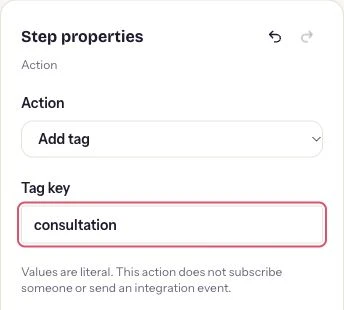
Actual production tag controls. Add tag and Remove tag use the entered key; these demonstration actions are configured in an unsaved draft.
Use one tag key per action. consultation and self_guided are separate tags, not one comma-separated value. A key with underscores is convenient for a multiword idea. For these keys, use letters and underscores exactly as shown.
An Update contact step can also Set field to a configured literal value. That is useful when the flow knows the value from a branch, such as a selected service category. In this example, Ask a question stores the visitor’s words and the tag actions store the selected interest.
Bring both routes to the same question
Connect the end of each tag sequence to the shared Ask a question step. Use an End step’s Continue at existing step control to reuse the compatible continuation.
Build the shared question and the steps after it on one route first. At the other route’s End, open Step properties → Continue at existing step and choose that question from the compatible destinations. Confirm the shared continuation when prompted.
Now both choices reach one question and one routing condition. The shared continuation saves you from maintaining two copies of identical wording. Canvas marks shared steps so you can see that changing the question affects every incoming branch using it.
Trace the full route rather than relying on the card positions. The intended order is choice, removal of the old opposite tag, addition of the chosen tag, shared question and condition. Dragging a Canvas card arranges its layout; it does not change that execution order.
If you prefer to start with separate copies while learning, make their wording and destinations consistent. The shared version becomes especially useful when the same question genuinely belongs to several routes.
Configured actions before the shared question
Chosen reply
Self-guided
- First action
- Remove consultation
- Second action
- Add self_guided
- Continue to
- Ask goal
Chosen reply
Consultation
- First action
- Remove self_guided
- Second action
- Add consultation
- Continue to
- Ask goal
Route with Has tag consultation
After the valid-answer path, add Check a condition. Set Condition to Has tag and Tag key to consultation. Connect Yes to the booking message and No to the self-guided resource.
Select Check a condition and inspect its properties. Choose Has tag from Condition, then type consultation in Tag key. This should match the key added by the Consultation branch.
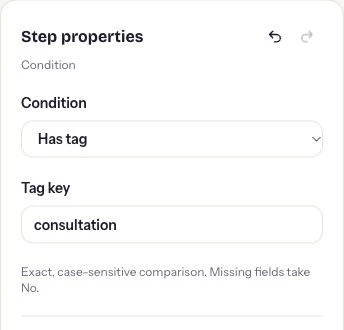
Actual production condition setup. The configured rule reads the consultation tag and selects its Yes or No path.
On Yes, use a Send message step with your consultation page as an External HTTPS link. Explain what the visitor can do there, such as reviewing the call details and choosing a time. The booking service handles appointment confirmation.
On No, use Send message with the selected Workspace asset · tracked delivery and a clear resource title. End each path after it fulfills the promise.
The same condition editor also offers Field has value and Field equals. Field equals compares the saved value exactly and is case-sensitive. Use it for a value you deliberately configured or a predictable answer; the goal field in this example stays useful as context rather than being forced into an exact phrase rule.
Preview the answer, tags and selected path
Run Preview for both choices, type a synthetic goal and expand Answers, tags and path. Check the field value, current tag and destination together.
Start with Self-guided or 1, then answer the goal question with a synthetic example such as “Plan my next month of content.” The resource path should show goal with that answer and self_guided among the tags.
Use Reset preview for a second run. Choose Consultation or 2, enter another synthetic goal and inspect the booking route. The consultation tag should be present and self_guided absent after the configured actions.
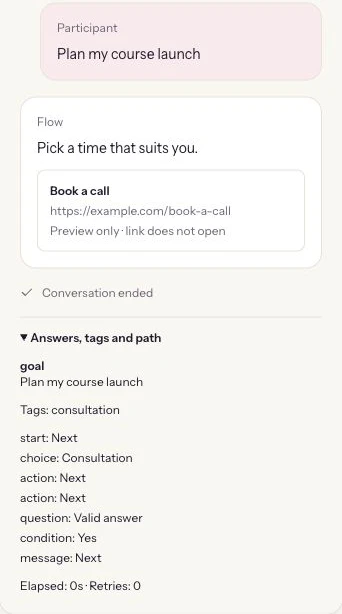
Actual production logic Preview of an unsaved demonstration. The displayed answer and tags are test values, not real participant data or confirmed appointments.
The Starting memory · preview only panel helps test a returning visitor. Enter consultation in Starting tags (comma separated), then run the Self-guided choice. Verify that Remove tag clears the old interest before Add tag records the new one. Unlike the single Tag key action input, this preview field accepts several starting tags separated by commas.
Use Clear test memory when you want an empty starting context. Preview does not read a real participant, send Instagram messages or save those test answers as contact data. Its purpose here is to make the configured memory and routing visible before publication.
Understand what the saved context belongs to
Live fields and tags are scoped to the participant, connected account and campaign within the workspace. Unexpired compatible values can be available when that person starts another conversation in the same campaign.
This is why the example updates both sides of the interest choice. A current Self-guided selection should replace the earlier consultation label for this decision, rather than leave two competing interests behind.
Fields and tags expire 30 days after their last successful write. Starting a new conversation or reading an existing value does not extend that period. Writing a value again refreshes its expiry. Keep the resource and booking paths usable even when there is no previous context.
Workspace members can read saved answers, so ask for information that serves the conversation. A short planning goal is more useful here than unnecessary personal details.
A Text field stores the submitted text; an Email field checks address syntax. Collecting an email as a lead with the intended consent and integration workflow is a separate asset capture configuration. Likewise, adding an interest tag records that configured label; it does not itself subscribe the person to a newsletter or trigger a CRM integration.
Review, save and publish the useful version
Save the draft, review the Publish checklist and deliberately publish the ready version. Verify the current choice and shared question on each path, then check real delivery through a controlled test.
Before saving, trace each choice through its two tag actions, the shared question, condition and destination. Review the question’s invalid and no-answer endings as well as the main route. Ensure every message describes the resource or appointment actually available.
Choose Save draft, resolve any checklist items and use Publish when the saved version is ready. Publication supplies the flow to new eligible triggers while existing conversations keep their original version. The campaign’s own status remains a separate setting.
After your planned publication, use a test account you control or a consenting colleague to inspect the actual Instagram journey. Logic Preview and a controlled delivery test answer different questions; together they help you review the configured route and the real destination.
You can apply the same pattern to course interests, workshop enquiries or service categories. First choose the decision, then the answer worth saving, then the rule that changes the next message. The qualification questions guide helps choose useful questions, while the conversation choices guide helps name the options people see.
Common questions
What is the difference between a field and a tag?
A field stores a value, such as a typed goal. A tag records a configured label, such as consultation. A condition can read either to choose a path.
Where do I enter a tag in ReplyMagnet?
Select Update contact, choose Add tag or Remove tag under Action and type one key in Tag key. Use the same spelling in any Has tag condition that reads it.
Can a condition understand any free-text answer?
The configured rules check a field’s presence, exact value or a tag. Field equals is case-sensitive. Use the visitor’s chosen label when that is the reliable routing signal.
Will starting another conversation clear the old tags?
Unexpired context can be reused in the same campaign. Add explicit Remove tag actions when a new choice should replace a previous interest.
Are Preview answers stored as live contact data?
No. Preview uses synthetic test context. Starting memory stays in the preview controls until cleared and does not read a real participant.