Guides
Instagram Saved Replies vs DM Automation: Which Should You Use?
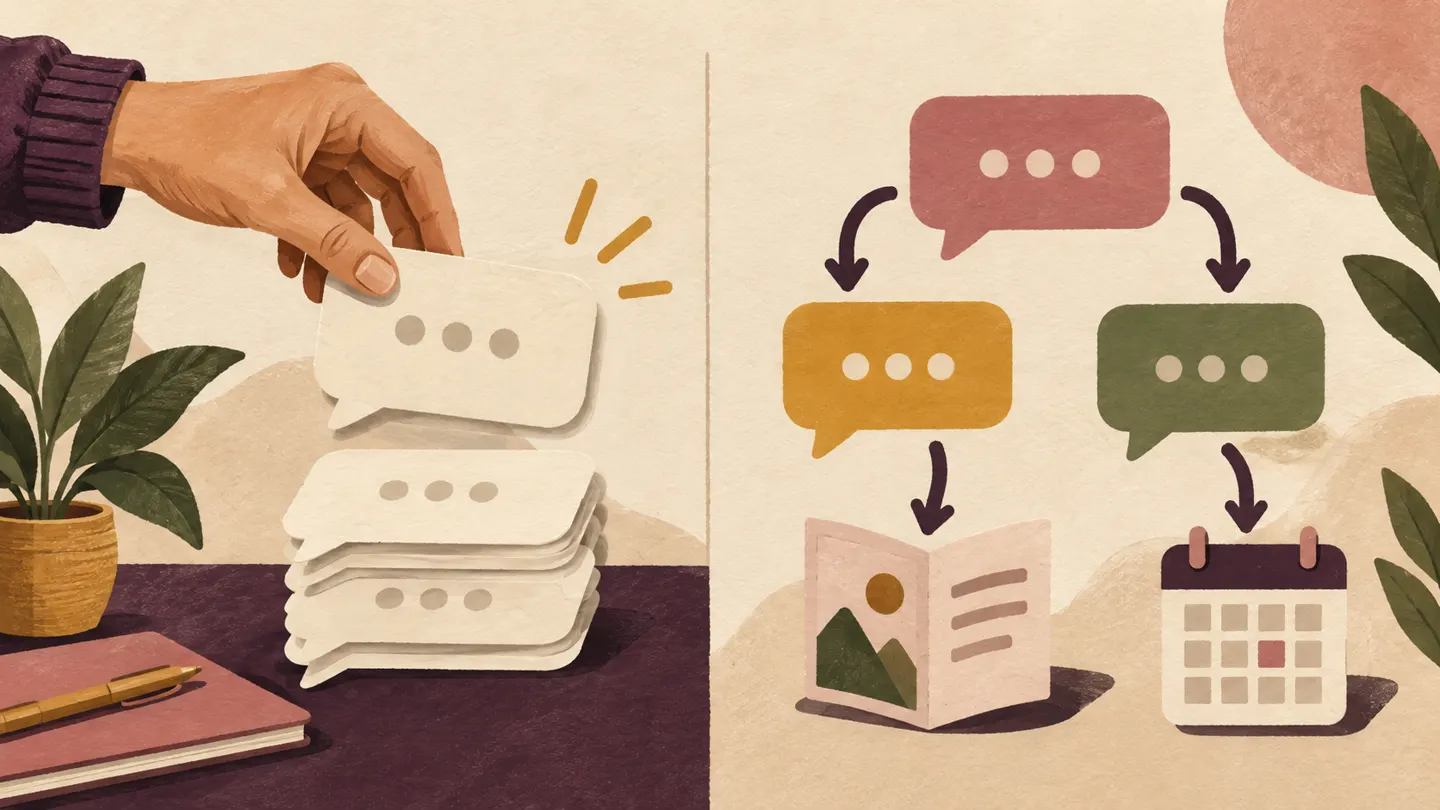
Use saved replies when a person should choose, adapt and send the answer. Use DM automation when a clear customer request can start a repeatable workflow, such as delivering a brochure or offering a booking link. Many businesses benefit from using both.
Published by ReplyMagnet · Last updated
A creator receives the same question after every course post: “Can you send me the details?” A prepared answer removes repeated typing. A triggered conversation can also handle the request and present the next step. Choosing between them starts with the work you want to remove.
This guide compares the two approaches and walks through a fictional course-brochure example. The screenshots are from an unsaved demonstration in the real ReplyMagnet platform, captured on 13 October 2026. The example addresses are placeholders; no customer messages were sent.
What is the difference between saved replies and DM automation?
Saved replies reuse text that you choose to send. DM automation responds to configured events and can guide someone through a sequence of messages and choices.
Think about who makes the next move. With a saved reply, you read the conversation, choose the prepared text, make any changes and send it. With a triggered workflow, you decide the rules beforehand; a matching event starts the configured response.
Meta describes saved replies in its professional inbox documentation. They are available in the Instagram mobile app for business and creator accounts. A shortcut brings a saved message into the composer. That shortcut is a tool for the sender; it is not an instruction that automatically answers a customer who types the same word.
There is another easily confused term: a choice button inside a flow. In the ReplyMagnet example below, “Course brochure” and “Book a call” are options the participant selects. They choose a route through the conversation. They are not the account owner's saved-response library.
Keep those three jobs separate: stored wording helps a person respond; a trigger starts automation; a choice directs an already-started conversation.
Which approach fits the request you receive?
Choose based on how predictable the request and next action are. Repeated resource requests suit automation; answers requiring judgment still benefit from a person.
Start with the requests themselves rather than an arbitrary follower-count threshold. A small audience may ask for the same download repeatedly after a Reel. A larger account may receive mostly bespoke questions. Those are different workloads.
Use this decision table to sort your own examples. It describes sensible starting points, not a rule that every enquiry must fit perfectly.
Customer request
“Please send the course brochure.”
- Useful starting point
- Triggered DM workflow
- Reason
- The requested resource and delivery step are predictable.
Customer request
“Will this course fit my unusual project?”
- Useful starting point
- Personal response, supported by saved wording
- Reason
- Someone should assess the context before recommending.
Customer request
“Where can I book a course enquiry call?”
- Useful starting point
- Prepared answer or automated booking path
- Reason
- Both can share the right link; choose according to the repeated work.
Customer request
“I have a payment problem.”
- Useful starting point
- Human review through your support process
- Reason
- A generic promotional sequence does not resolve an individual account issue.
Customer request
“Can I get a brochure or book a call?”
- Useful starting point
- Flow with two clear choices
- Reason
- The participant can select the next action themselves.
A useful boundary is whether the same accurate answer would serve the next person with that request. If yes, consider automation. If the answer changes after reading their situation, prepare helpful wording but keep a person involved.
How do you prepare an effective Instagram saved reply?
Save a reusable answer, give it a memorable shortcut and review it in context before sending. Keep changing details, such as dates or availability, easy to check.
Meta's documented mobile route is to hold a message you have already sent, choose More, then Save, and create a keyboard shortcut. When composing a later response, type the shortcut and use the chat icon to fill the saved wording. Review the recipient's question before sending.
For the course example, prepare text like:
Here is the course brochure: [your brochure link]. It explains the lessons, format and who it is for. Which part would you like to know more about?
Replace the bracketed link before saving it. A private shortcut such as courseinfo can help you find the response without making that shortcut part of your public campaign promise.
Write the reusable part around stable information. Avoid putting a temporary discount or “only two places left” into a response that might be reused next month. If a detail changes often, check the current course page before answering. Keep the brochure itself current as well: accurate message wording cannot fix an outdated destination.
A saved response is also a useful starting point for a more personal answer. You can introduce the brochure, then address the person's particular question in your own words. The aim is to avoid rewriting the reliable information while preserving the judgment that makes the response useful.
When is it worth turning a saved response into automation?
Automate a request when you can define its trigger, useful response and next destination clearly. Start with one repeatable task before adding branches.
The brochure example is a good candidate because it has a simple contract: someone asks for course information, and you provide the course information. Write that contract in one sentence before opening the builder.
Then answer four practical questions:
- Entry: Will people send a direct message or comment on a selected post?
- Match: What request should start this particular campaign?
- Delivery: Which page or resource fulfills that request?
- Next step: Is the brochure enough, or would a separate booking option help?
For this walkthrough, use direct messages and the keyword BROCHURE. Your invitation can say, “DM BROCHURE for the course details and enquiry-call option.” This matches the demonstrated source. A caption promising “comment BROCHURE” would require a post-comment campaign instead; use the comment-to-DM setup guide for that starting point.
Keep the first test to a keyword so the expected match is easy to understand. AI Smart Triggers are a separate way to recognize relevant requests; they do not need to be part of this first comparison or demonstration. Choose them deliberately once the offer and response are clear.
Step 1: Configure the course-brochure trigger
Choose Direct messages as the source, add BROCHURE under Trigger, and select the matching behavior that fits your invitation.
In ReplyMagnet, open the campaign setup for your connected Instagram account. Under Source, choose Direct messages. Continue to Trigger, type BROCHURE into the keywords field and press Enter.
The screenshot uses Message contains the word. That setting lets the keyword appear within a longer message, such as “Please send the brochure.” Exact word only is the alternative when you want the message itself to match the keyword. Check the behavior against your actual invitation before launch.
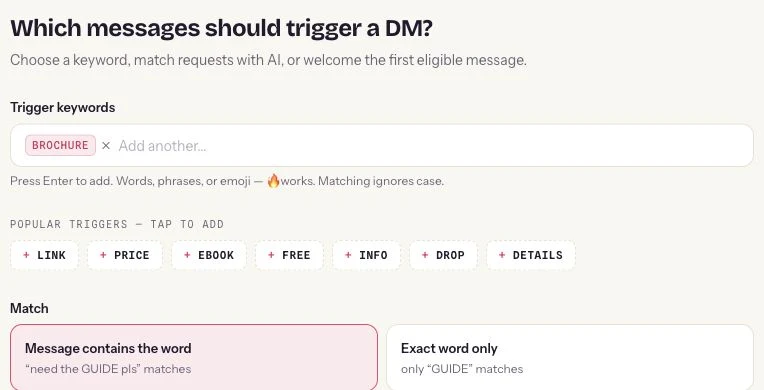
Actual ReplyMagnet trigger controls in an unsaved demonstration. The screenshot excludes account navigation and unrelated campaign details.
For the branched example, use an eligible Instagram Pro or Agency workspace, including an eligible trial, with owner access to edit and publish the flow. Complete the campaign setup before building its conversation. Availability of this particular flow builder should not be confused with the broader concept of sending an automatic reply.
Keep the campaign's ordinary DM accurate too. It is separate from the published flow's messages. The builder explains when that fallback is used; editing it does not rewrite the conversation you build next.
Step 2: Offer a brochure or a course enquiry call
Use the Resource or booking template, rename the resource choice and give each branch its own relevant destination.
Open the campaign's flow builder. Expand Start from a template, choose Resource or booking, and use it for this new example. Applying a template replaces the current draft, so use a new campaign or a draft you intend to replace.
Select Offer choices and enter this message:
Thanks for asking about the course. What would help you next? Reply 1 for Course brochure or 2 for Book a call.
Set Reply 1 to Course brochure and Reply 2 to Book a call. Keep the numbered instructions consistent with the labels and order. In this editor, people can select an option or type its label or number; that makes the wording part of the working flow, not just decoration.
Select the brochure branch's Send message step. Write a short explanation of what the reader will receive. Under Link, choose External HTTPS link, set Link title to Read the brochure, and enter your real brochure address under HTTPS destination.
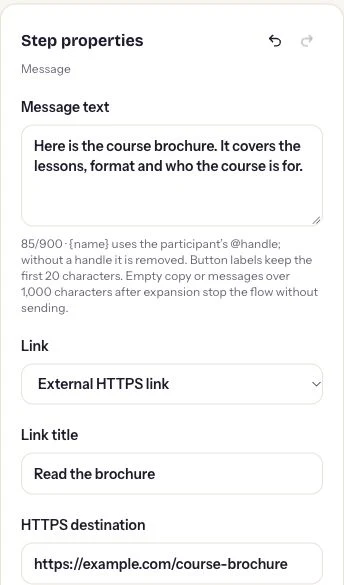
Real message editor. The example.com address illustrates the field; replace it with a working course page before publishing.
On the Book a call branch, write a separate message explaining the purpose of the call, then add your actual booking address. Use wording such as “Choose a time for a course enquiry call,” so the reader knows what they are opening. Sharing the booking link does not itself confirm an appointment.
For a file already uploaded to ReplyMagnet, Workspace asset · tracked delivery is another link choice. This example uses an external brochure page, so it does not depend on an asset capture gate. Keep both branches focused: one sends course information, the other offers a conversation about fit.
Step 3: Preview both paths before publishing
Run the brochure and booking branches separately, check the visible copy and confirm that each route ends where you intended.
Open Preview and start the conversation. Select Course brochure. You should see the choice message, the selected response and the brochure message with its link. Reset the preview and select Book a call to check the other branch.
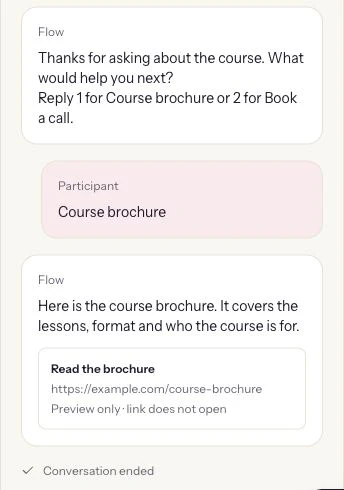
Actual logic preview of the fictional brochure scenario. Both branches were tested; Preview sends nothing and does not open destination links.
Use this short pre-publication checklist:
- The campaign source matches the instruction you give your audience.
- The keyword and match mode recognize the intended request.
- Choice labels match the numbered options in the message.
- Each branch has the correct text and destination.
- Your real brochure and booking URLs work when opened separately.
- Unmatched replies and no-answer routes have an intentional outcome.
The template's unmatched and no-answer paths end in this example. That keeps the first version simple. Test those paths too, so you understand what happens when someone writes an unexpected answer or does not continue.
When your checks pass, Save draft, review the builder's validation and Publish the flow. Publishing a flow does not activate a paused campaign; confirm the campaign status separately. Preview checks conversation logic, not actual Instagram delivery. After activation, use a controlled test account to check the real journey before directing an audience to it. The screenshots here stop at Preview, with nothing saved or activated.
For more detail on the builder itself, follow the Canvas walkthrough.
How do you combine automation with personal replies?
Let automation handle the repeatable first task, then give individual questions the attention they need. Keep the same promises and information across both kinds of response.
The course workflow can deliver the brochure and point someone toward a call. A later question about their goals may deserve a personal answer. You can reuse a saved explanation of the course format while writing a specific response to their situation.
Agree on the boundary before launching. For example: brochure requests receive the brochure route; questions about personal suitability are reviewed by the creator through the team's actual inbox process. Do not write “a specialist has been assigned” unless your real process performs that assignment.
Review the brochure, booking page, saved response and flow copy together when the offer changes. Updating one does not automatically update the others. A simple list of these four places can prevent last month's promise surviving in a forgotten template.
If you later need to remember an answer or route by a saved category, the custom-fields and tags guide explains the relevant controls. Add that complexity only when it improves the next step for the reader.
Judge the first version by practical evidence: did the request reach the intended response, could the person open the right resource, and did their next question receive a useful answer? Those observations are more actionable than assuming that automation alone will increase sales. Start with a helpful exchange and improve it from what you actually see.
Common questions
Do Instagram saved replies send automatically?
No. They provide reusable wording that you insert into a conversation and choose to send. A customer typing your saved-reply shortcut does not turn it into an automatic response.
Are saved replies the same as the buttons in a chat flow?
No. A saved reply helps the account owner compose a response. A choice button lets the participant select a route through a configured conversation.
Can I use saved replies and ReplyMagnet together?
Yes. Use a defined ReplyMagnet campaign for repeatable requests and your actual inbox process for personal replies. Keep the wording and destinations consistent so both approaches deliver the same current information.
Should every Instagram message start this brochure flow?
No. This example deliberately uses a BROCHURE keyword request. It should answer the advertised course-information request, rather than send a promotional brochure in response to unrelated messages.