Guides
Import Instagram leads from CSV without losing contact context
A CSV upload can finish successfully while still leaving you with overwritten names, unexpected automation entries or a contact count you cannot explain. Treat the handoff as a small, reviewed data project: preserve the original, decide which records belong, and verify what changed.
Published by ReplyMagnet · Last updated
How should you import Instagram leads from a CSV?
Export the intended records, preserve an untouched original, map only the fields you need and test a small permitted sample. Reconcile new contacts, existing-contact changes and excluded rows before considering the handoff complete.
Start by separating three questions: which records were exported, which people belong in this destination, and what the import will do to people already there. They are different decisions. An address appearing in a file answers none of them by itself.

Editorial illustration: carry the source context with the contact and keep an untouched original. This is not a product screenshot.
A useful end result is more specific than “upload succeeded.” You should be able to identify the source file, explain the selected batch, show how fields were mapped and account for the destination’s results. This guide covers a historical file handoff into an email platform; it does not describe importing a CSV back into ReplyMagnet.
When is a CSV better suited than ongoing sync?
A CSV is useful for a deliberate historical batch or a reviewed handoff to a new destination. Ongoing sync is a separate workflow for future contacts and needs its own field and duplicate checks.
For example, you might have captured leads before connecting your email platform. A file lets you review those older records before deciding which belong in the destination. You can also use it when another person needs to inspect the batch and approve the field map.
Do not assume connecting live sync automatically imports every historical record, or that a manual import cannot overlap with contacts already synced. Record when the export was taken and which route handles new records afterward. If the same address can arrive through both routes, inspect how the destination handles it.
Use the email-sync documentation for the native connection, or the Zapier and Make guide for an event-based handoff. This article stays with the file you can inspect, the changes you choose and the results you can reconcile.
Export the batch you actually intend to review
ReplyMagnet’s CSV export uses the currently filtered tab and search results. Export is available on Basic, Pro and Agency; preserve the original file before selecting or editing records outside the app.
Open Leads and check the active tab and search text before exporting. Search can match username, name, email or phone. Do not assume the export represents every campaign or every record just because the file downloaded successfully.
The current export filename is magnet-leads.csv. Its headers are platform, username, name, campaign, follower, email, phone, last_activity. There is no built-in campaign or date export filter in the workflow described here. If you need a campaign-specific batch, inspect the exported campaign values and select the intended records in a working copy outside ReplyMagnet.
Save an untouched original and make a separate import copy. Record the export time, selected tab, search text and row count, excluding the header. Name the working copy so it cannot be confused with the original. When reviewing it in a spreadsheet, check that phone values and timestamps have not been reformatted in ways that change their meaning.
The file is a set of lead records, not a complete interaction history. Follow the Leads documentation for the export controls, and verify the contents before treating them as your intended audience.
Map each field according to what it really means
Map email to the destination’s email field and review other columns individually. The CSV does not contain subscription permission, subscription status, a stable contact ID or a signup timestamp.
A field map is a short agreement about meaning, not just a match between similar labels. Decide which values you need and leave unnecessary columns unmapped. In particular, do not map last_activity into a field called signup date just because both accept dates.
The name value may be a display name or a fallback derived from a username. It is not necessarily a verified first name. Review it before using it for personal greetings; splitting it automatically can produce awkward or inaccurate names.
Campaign is the mapped campaign name, not the person’s complete request history. Mapping that text into a source field also does not automatically create a native tag in your email platform. Use the segmentation guide when deciding how source context should support a useful audience rule.
A deliberate starting field map
CSV column
- Possible destination
- Email address
- Meaning to preserve
- A captured address; check intended use separately.
CSV column
name
- Possible destination
- Reviewed display-name field, or omit
- Meaning to preserve
- May be a username-derived fallback; not verified first name.
CSV column
campaign
- Possible destination
- Source-context field
- Meaning to preserve
- Campaign name, not full history or an automatic tag.
CSV column
last_activity
- Possible destination
- Activity reference, if needed
- Meaning to preserve
- Last-event timestamp, not signup or consent time.
CSV column
follower
- Possible destination
- Separate observation, or omit
- Meaning to preserve
- Follower status is not email subscription permission.
CSV column
phone
- Possible destination
- Phone field only when needed
- Meaning to preserve
- Keep only for an explained destination purpose.
CSV column
platform / username
- Possible destination
- Source reference if useful
- Meaning to preserve
- Context for the record, not a universal contact identifier.
Choose the people and update behavior before upload
Separate eligible new contacts, existing contacts that may need a deliberate update and rows that should be held back. Keep the destination’s subscription status authoritative rather than trying to recreate it from the CSV.
Rows without an email address are not ready for an email-platform import. Hold records whose intended use is unclear until you can check the original signup context and recipient expectations. A follower flag, downloaded resource or campaign name does not by itself establish permission for a newsletter.
Next, compare the remaining addresses within the file and against your destination where possible. Do not deduplicate solely by name or Instagram handle. Two people can share a display name, and the same person can appear in more than one source record. Do not guess email typo corrections, remove plus-addressing or apply provider-specific dot rules to merge addresses.
For repeat addresses, decide which contextual information should survive. One person requesting two different resources does not necessarily need two contact records. Preserve the meaningful source information according to your field plan rather than choosing an arbitrary row and losing the other context.
Finally, decide whether existing fields should change. If the destination already has a useful name and the CSV has a blank or username-derived value, an update may make the record worse. Keep a before-state export or equivalent record of affected fields where available, and review the update option before selecting it.
Check Mailchimp and Kit import side effects
An import can update existing fields or start downstream automation. Inspect the destination, mapping and entry routes before upload; a batch marker should identify this import, not stand in for consent or proven interest.
Mailchimp’s import guide explains that an import uses one marketing status, detects certain duplicates and excluded records within the audience, and can overwrite existing fields, including with blanks. Existing contacts’ marketing status is not changed by the import. Detection does not deduplicate across separate audiences.
That makes the selected audience part of the review. Confirm its identity before uploading. A clean-looking file sent to the wrong audience is still the wrong handoff. Review every mapped field and the setting for updating existing contacts; do not enable updates merely to make the import appear more complete.
Kit’s import FAQ notes that imported field values can replace existing values, imports can trigger form or tag automations and sequences, and imports into double-opt-in forms are automatically confirmed. That form setting is therefore not a validation step for the imported list.
Inspect the specific Kit form, tag and connected automation routes you intend to use. Do not make blanket changes to automations serving current subscribers just to prepare this batch. Identify which route the import will enter and have its owner review the expected effect before proceeding.
If you add an import-batch marker, give it a factual meaning such as the reviewed batch identifier. It should help locate affected records later. It should not silently enroll people into a new interest category or imply they agreed to a different kind of email.
Run a small pilot with explicit acceptance checks
Use controlled records and a small appropriately selected sample to test the mapping and update decisions. Check the destination record and automation outcome, not just the importer’s success message.
A pilot should expose the behaviors most likely to surprise you. Keep test activity identifiable and do not send marketing messages to real contacts merely to test this guide. Use contact addresses you control for new-record behavior; inspect real existing-contact status without overriding it.
Check these cases before the larger batch:
- New controlled address: verify the mapped fields and the exact automation path, if any, that it enters.
- Existing record with a valuable name: confirm your chosen update behavior preserves or deliberately changes it.
- Repeated address in the file: inspect how it is counted and which values remain.
- Missing email: confirm it is held out of the prepared import rather than becoming an unexplained error later.
- Previously unsubscribed record: verify that your process respects its existing status; do not override it to force acceptance.
- Person with multiple recorded interests: check that useful context survives without inventing a second person or unintended subscription.
Write the expected result before inspecting the actual result. If they differ, resolve the field map or entry route before continuing. Save the pilot’s import identifier and notes so the full batch uses the reviewed configuration rather than relying on memory.
Reconcile rows separately from new subscribers
Input rows, unique candidate addresses and newly added contacts are different counts. Account for each stage and keep rejected or skipped rows in a separate review list.
Consider this fictional worked example, created to explain reconciliation rather than report ReplyMagnet customer results.
You export 120 rows. Twenty lack an email address, and five more are held because their intended use is unclear. That leaves 95 candidate rows. Five are repeated addresses within that candidate set, leaving 90 unique candidates for the reviewed import.
The destination then reports 60 newly added contacts, 25 existing contacts updated and five rejected or skipped records. These illustrative outcome categories account for all 90 candidates: 60 + 25 + 5 = 90. They are not guaranteed provider labels or outcomes.
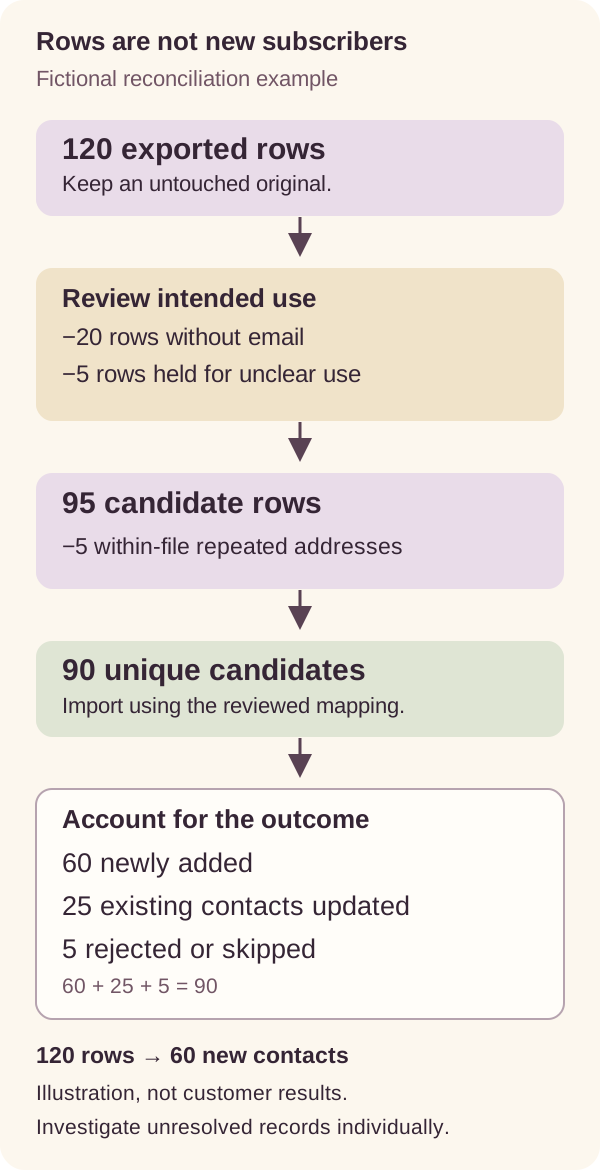
Original explanatory diagram using fictional counts. Ninety unique candidates produce 60 new contacts in this example; row count is not subscriber growth.
Keep two reconciliations: how the original file became the prepared batch, and how the destination accounted for that batch. Here, 120 = 20 + 5 + 5 + 90 explains preparation. Then 90 = 60 + 25 + 5 explains processing.
For each unresolved row, record the address or secure record reference, reported reason and next action. Investigate those specific cases instead of uploading the whole file again. A duplicate, invalid address and excluded subscription status call for different decisions.
Prepare recovery before you need it
Keep the original file, field map, before-state evidence and destination import identifier. Recovery must distinguish newly created contacts from fields changed on existing contacts.
Mailchimp’s undo documentation states that undo removes newly added contacts but does not reverse field updates to contacts already present. Do not describe an import as fully reversible merely because an Undo option exists.
If a field was overwritten, identify the affected records and compare them with your before-state evidence. Have the responsible owner review the correction scope. Removing the whole audience or repeatedly importing the full file can create further changes without repairing the original problem.
Also inspect any automation that actually ran. Correcting a contact field does not recall an email already sent. This is why reviewing the entry route and testing a small controlled sample belongs before the full import, not after a surprising result.
If results remain uncertain, preserve the evidence and stop broad retries. A clear unresolved list is more useful than an apparently successful second upload that obscures what the first one changed.
Use this handoff worksheet before the full batch
Record the source, permitted purpose, field decisions, pilot result and reconciliation owner in one place. The import is complete when its changes are understood, not simply when the upload finishes.
Copy these prompts into your campaign notes:
- Source: export time, active tab, search text, original filename and row count.
- Selection: intended destination and purpose; rows excluded or awaiting review.
- Field map: included columns, meaning, omitted columns and existing-field update decisions.
- Destination behavior: target audience or form, batch marker and connected automation routes.
- Pilot: controlled cases, expected results, observed results and corrections.
- Reconciliation: unique candidates, new contacts, updated contacts, rejected or skipped records and unresolved actions.
- Recovery: import identifier, before-state location and owner responsible for corrections.
When those notes are ready, review your leads in ReplyMagnet and start with a small permitted export. Use the Leads guide for controls and email sync for the ongoing route. After a successful handoff, review the first-email guide so the next message matches what the recipient actually requested.
Common questions
Which ReplyMagnet plans include CSV export?
CSV export is available on Basic, Pro and Agency. The exported rows follow the active Leads tab and search selection.
Why does the import count differ from the CSV row count?
Rows can lack usable addresses, repeat an address, match existing contacts or be rejected or skipped. Reconcile preparation and destination outcomes separately; input rows do not equal new subscribers.
Does an exported email address prove newsletter permission?
No. The export contains captured lead data, not subscription permission or status. Check the original signup context, intended use and the destination’s existing status before including a record.
Will connecting email sync replace this historical import?
Do not assume so. Ongoing sync and a reviewed historical file import are separate routes. Check coverage and overlap rather than assuming either transfers every past record.